



Originally published by Seamless Intelligence in 2019. This research led to CVE-2019-0838, which Microsoft has since patched.
It's not every day you come across an issue that Microsoft deems worthy of a patch, especially when your day job is sifting through logs looking for indicators of compromise. But while testing techniques to detect password scraping from memory, that's exactly the position we found ourselves in.
First, we had to confirm the issue was present across all of our Windows test servers, in case we had misconfigured the server where we found it. Once we'd reproduced it on multiple operating systems, including a fully patched Windows Server 2016 environment, we were confident enough to submit it to Microsoft.
Windows credential management
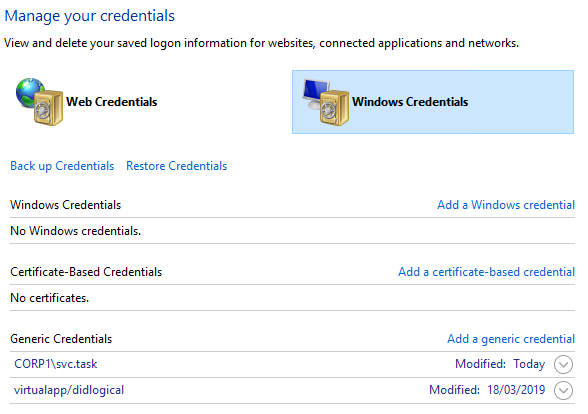
Microsoft has made many improvements in recent years to how Windows manages credentials, so cracking open LSASS is no longer guaranteed to be the easiest way to get plaintext passwords.
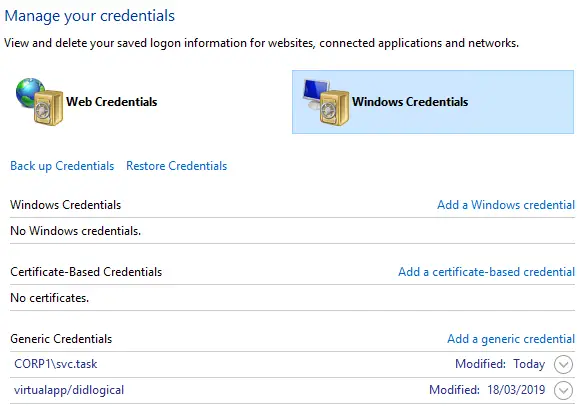
Improvements include WDigest Authentication being off by default, and the ability to configure Windows Defender Credential Guard and additional LSA protections. As a result, attackers have turned to other techniques to steal credentials, such as simply asking users for them or using tools like Responder. Testing by Seamless Intelligence found that under certain circumstances, Windows Credential Manager stores passwords and leaves them in LSASS as plaintext.
Why is this an issue?
Administrators may have a false sense of security because of the robust protections built into Windows Server 2016, which hinder password-dumping tools from extracting plaintext passwords. Yet a single scheduled task can expose sensitive credentials despite all of those safeguards.
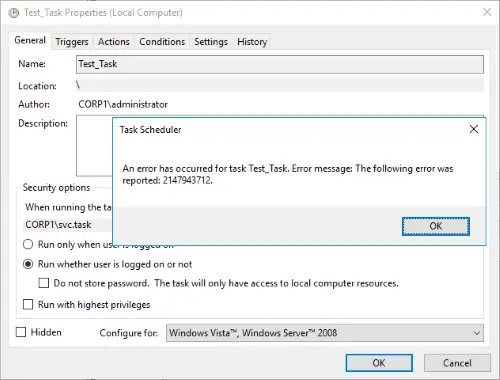
When creating a scheduled task on Windows Server, an administrator can configure it to run with a domain account and explicitly set it not to save the password. Two configuration options should stop passwords being saved in Credential Manager, but neither worked on Windows Server 2012 R2 or Windows Server 2016:
- Task Scheduler has a "Do not store password" option. Our testing showed it has no effect on whether the password is stored in Credential Manager.
- Group Policy has a setting to prevent storage of credentials for network authentication. Our testing showed it's ineffective when a scheduled task is configured to use a domain account: it stops the task being saved, but the password is still stored in LSASS. Read more about this Group Policy setting.
This is concerning for several reasons:
- Scheduled tasks are needed to perform functions on Windows servers without someone logging on or running them manually.
- If an administrator needs to save the password for domain access, it's stored in LSASS in plaintext.
- If an administrator doesn't need the password saved, it's stored anyway, even when Task Scheduler is explicitly told not to.
- The service accounts used for these tasks often have high levels of privilege within the organisation.
- Administrators who have the Group Policy set and untick "Store password" are left with a false impression of their servers' security posture.
Reproducing the issue
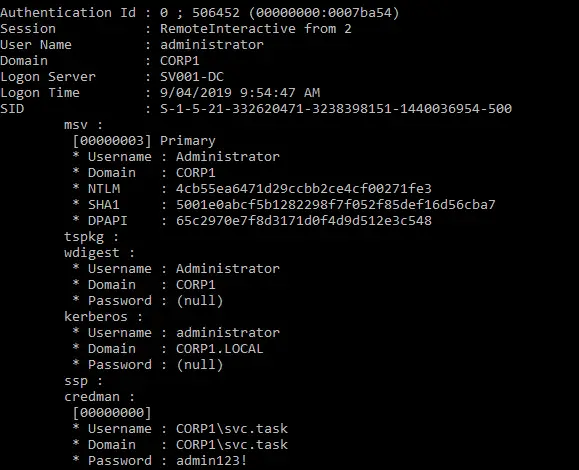
The following steps reproduce the issue on unpatched Windows Server 2012 R2 and 2016:
- Set the Group Policy "Network access: Do not allow storage of passwords and credentials for network authentication" to Enabled.
- Edit a scheduled task to "Run whether user is logged on or not".
- Change the user to a domain service account.
- Ignore the resulting error. The Group Policy change prevents the task from being saved.
- The credentials are now in Credential Manager.
- Run Mimikatz or SafetyKatz, and the password is available in plaintext.
What can you do?
Applying Microsoft's patch is the best solution. In the meantime, a few steps can reduce the impact of account misuse:
- Review your use of scheduled tasks. Identify the accounts most commonly used to run scheduled tasks and monitor them in your SIEM for activity that's abnormal for service accounts, such as web browsing, VPN logons or interactive logons to servers.
- Review privilege levels. Check what privileges those accounts hold within the domain and reduce them where possible. BloodHound is excellent for this, as you can run queries starting from either the group or the target account.
- Patch. With no concrete workarounds or mitigations, patching is the best course of action. View the Microsoft security advisory for CVE-2019-0838.